Disclosure: I am a paid ambassador for Adobe Express, and this article contains affiliate links. I think you should still consider my opinion because I’m intimately familiar with both platforms and have been using both for over five years.
Are you looking for user-friendly, browser-based design software to help you create beautiful content online? Look no further.
In this blog post, I'm comparing the two most popular options: Canva and Adobe Express. Canva is a very popular graphic design tool, and widely accessible to the masses—primarily because it was early in the world of browser and app-based graphic design solutions. Adobe Express is also a browser-based (and mobile app) tool that makes content creation easy for solopreneurs, small businesses, and even creative professionals, as it boasts some pretty advanced and sophisticated features. Both are great solutions for many small businesses and entrepreneurs with no prerequisite for design experience, so I’ll go into more detail on what makes each of them different.
Before I dive in, here's my honest take: Canva revolutionized design accessibility, and it deserves credit for that. But is it still the best tool in 2026? For people who appreciate elevated design and a curated experience, I believe Adobe Express has pulled ahead. Let me show you why.
Related: Wondering about Adobe Express vs Canva? In this video, I share why I switched from Canva to Adobe Express for my own brand, after considering how each can elevate one’s aesthetic, assist in staying on brand, save time, and use generative AI tools for creating content.
Both Canva and Express can be a bit complex and have their pros and cons, so let's take a closer look at each one and find out which one is best for you.
Here’s what I’ll be comparing:
And finally, I’ll sum up my findings and make a platform recommendation. There’s lots to cover, so let’s begin.
What is Canva?
Without a doubt, Canva offers an innovative and user-friendly design software that has taken the design world by storm. Its growth is remarkable—Canva has grown to over 260 million monthly users since its launch in 2014. In some respect, the platform kickstarted a movement to democratize design, making it possible for beginners and professionals alike. Nowadays, you can rely on a tool such as Canva or Adobe Express to create social media graphics, presentations, posters, or even infographics, without necessarily having to hire a professional.
In October 2025, Canva launched what they called their "Creative Operating System" and Visual Suite 2.0, their biggest product update ever. They also made a significant move by acquiring Affinity (a professional design suite that competed with Adobe) and making it completely free. More on that later.

Canva has grown to over 260 million monthly users since its launch in 2014. (Source: Canva)
What is Adobe Express?
Similar to Canva, Adobe Express is a powerful browser and mobile app graphic design tool. It started as Adobe Spark, rebranded as Adobe Creative Cloud Express, and is today known just as Adobe Express. It is one of many offerings by Adobe, which have been providing software for creative professionals for over 40 years. Through its many acquisitions and developments over the past few decades, Adobe has become arguably the number one leading provider of creative software tools in the industry today. Cross-platform compatibility is one of many reasons why people might choose Adobe Express over its competitors like Canva.
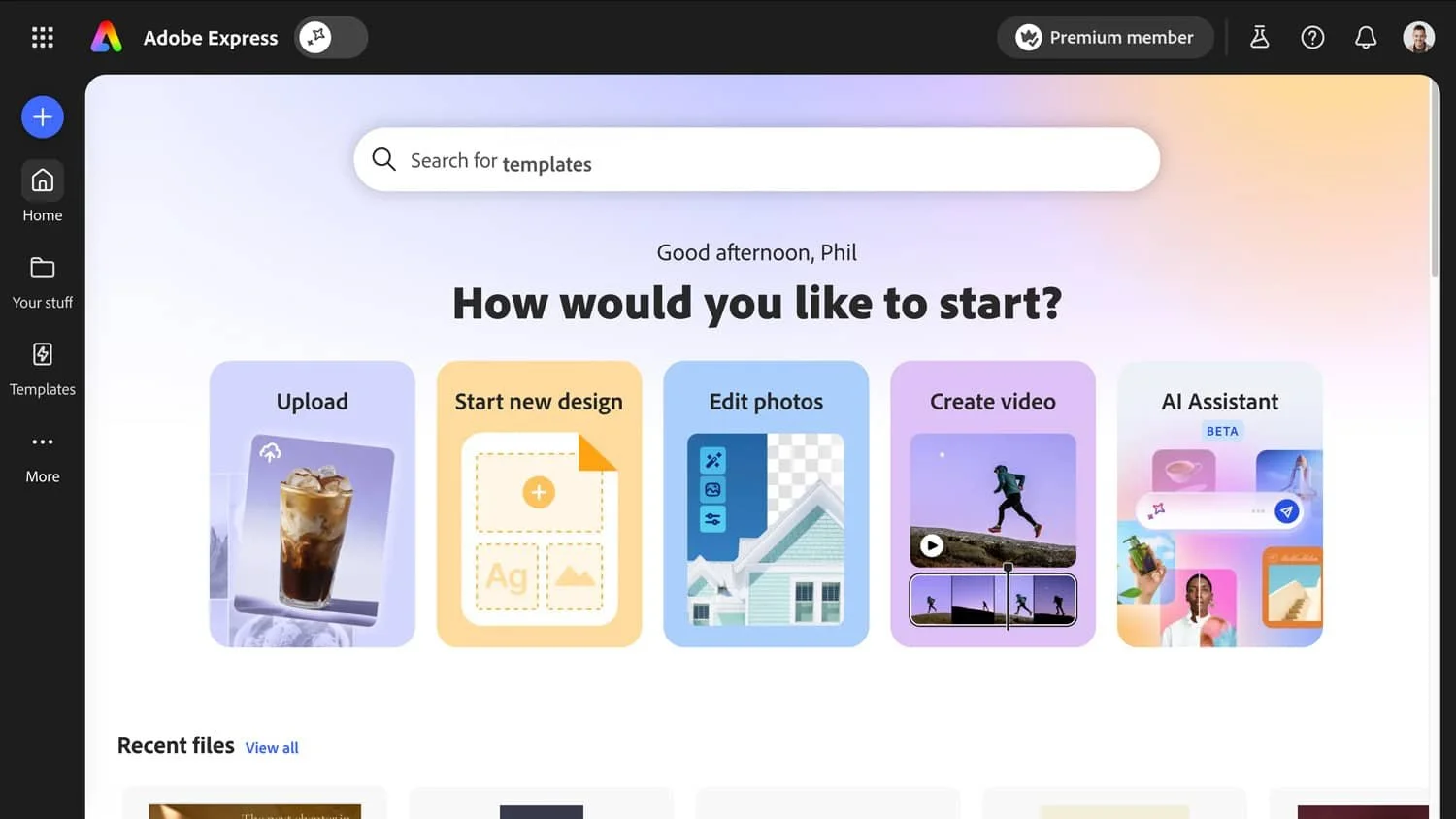
Adobe Express features a unified editor, which makes asset creation easier for use across different outputs like video, photo, PDF, etc. It also integrates seamlessly with Adobe Firefly generative AI features including Generate image, Generate video, Insert object, Remove object, Generate template, Generate similar, and Generate text effects.
In October 2025, Adobe launched an AI Assistant for Express (currently in beta), which lets you create and edit designs using natural language prompts. You can switch between the AI assistant and manual editing tools, giving you the best of both worlds.
Related: Curious about the new Adobe Express AI Assistant? In this video, I walk through a full demo of how this AI tool updates text, generates design ideas, edits images, and refines your creative layout, all while you stay in total control.
#1: Ease Of Use
Both platforms are incredibly easy to use for graphic design tasks. They’re straightforward to navigate, grouping your primary controls on the left-hand side. Both platforms have smart guides to line up elements, which are essential for browser-based designing.
Rulers & pixels
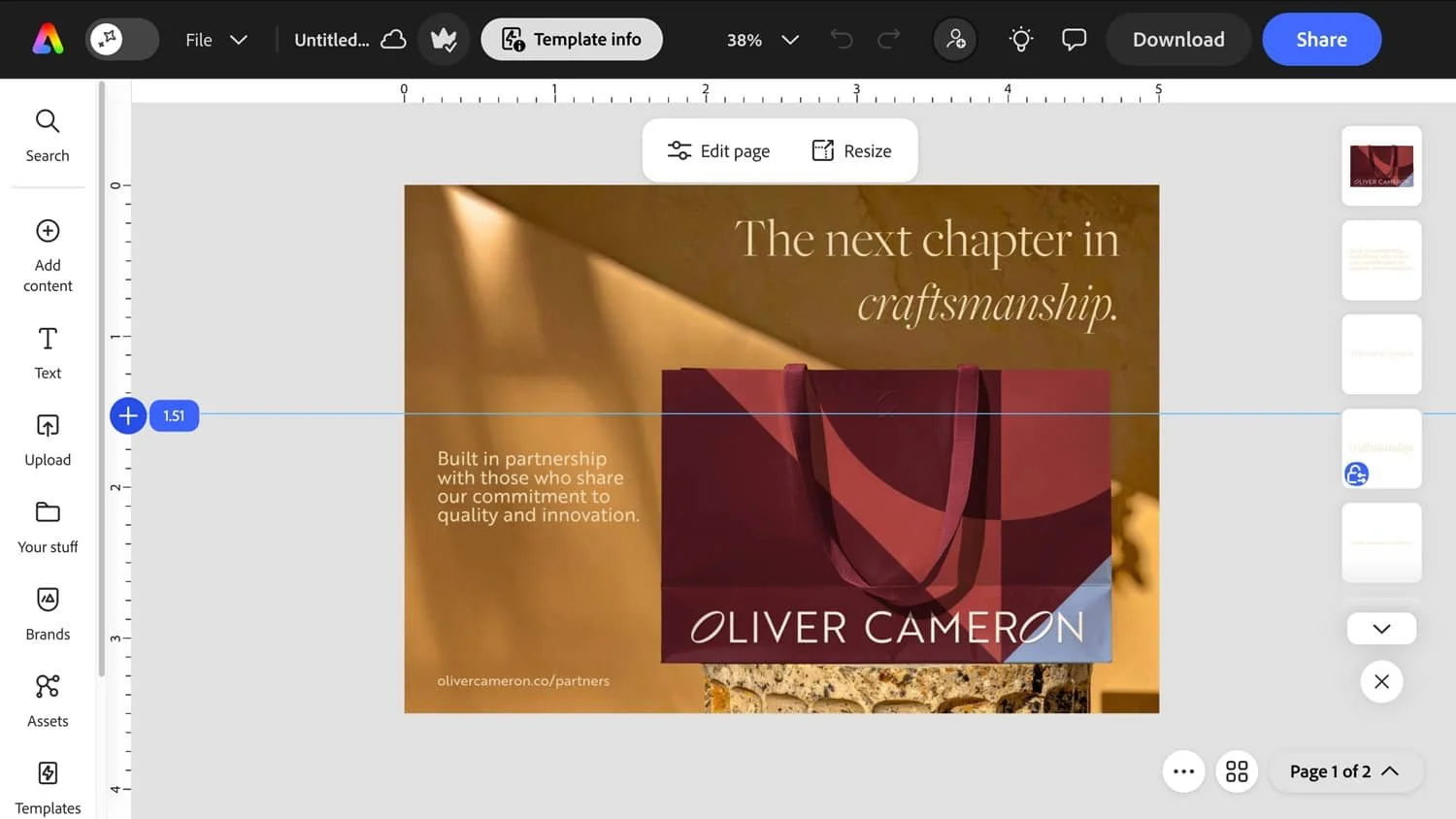
Both platforms let you specify what pixel size you'd like to create your canvas, and both now display rulers. Adobe Express added rulers and guides in late 2025, closing a gap that previously gave Canva an advantage. The implementation differs slightly: Canva shows exact pixel dimensions directly on elements as you drag them.

In Express, the measurement is displayed on the ruler itself (enabled under File > Rulers & Guides). If you're used to one approach, it might take an adjustment getting used to the other, but both work well. You can drag guide lines from the rulers and lock them in position. The units displayed depend on what you define in the "Resize" menu, so you can work in pixels, inches, or millimeters depending on your project needs.
Layers
Admittedly, previous versions of Adobe Express were more difficult to use, but since the launch of its redesigned platform, it's so much easier and robust. I find that the Adobe Express interface is cleaner and easier to navigate and organize than Canva’s. Layer control is another differentiator. Canva launched the option to select and move layers, but has this option hidden and turned off by default for some reason (you have to right click on an element, select ‘Layer’ and then ‘Show layer’). Adobe Express makes it so easy to see and reorder layers by always keeping them visible in the top right, a workflow many creatives are accustomed to in Photoshop, Illustrator, and others. I love that.
Libraries & linked assets
Speaking of Adobe’s other flagship apps, it’s really easy to access your libraries and files stored on the cloud. Adobe Express allows you to interact with other Adobe flagship apps and file types like PSD, PDF, or AI files, and save files effortlessly to the cloud using libraries. Linked assets ensure Adobe Express designs stay in sync as you make edits in Photoshop or Illustrator.
For example, if I wanted to update the iPhone shown in my hand below, I can place the newer phone model as the top layer and make any other adjustments in Photoshop, and it will update automatically that linked asset to the newest version in Adobe Express. This feature eliminates the need to download and upload files every time a design tweak is made, which is a major timesaver.
This is something Canva simply cannot do. Canva lives in its own ecosystem, while Express sits in the middle of a professional creative workflow.

Linked assets in Adobe Express mean that if I wanted to update the iPhone shown in my hand below, I can place the newer phone model as the top layer and make any other adjustments in Photoshop, and it will update automatically that linked asset to the newest version in Adobe Express.
Here's how Adobe Express keeps everything organized:
Brands
Specific to Adobe Express and contain your logos, colors, fonts, and brand assets. You can set up multiple brands if you manage different clients or business lines, and switch between them instantly.
Libraries
Sync across all Creative Cloud apps. When you save assets to a Library in Photoshop or Illustrator, they're immediately available in Express, and vice versa. This is managed through the Creative Cloud desktop app and keeps your team aligned across tools.
Projects
The containers that bring everything together. A single Project can house multiple brands, your social content calendar, templates, and individual files, all organized into folders. For agencies or businesses managing multiple campaigns, this structure keeps everything accessible.
Quick actions
In Canva if you need to convert an image file type, combine PDF pages, create a QR code, or any other simple task, you have to complete it in the standard page editor, or rely on one of their third party apps (I’ll go into more detail on that later). For something so straightforward, it’s a lot of extra steps.
However, in Adobe Express, there is an entire section of the platform dedicated to these one-click tasks called Quick Actions. This is a faster, more streamlined way to handle those simple tasks, including:
Enhance Speech (remove background noise from audio)
Clip maker (create clips from longer videos)
Particularly for users wanting to avoid creating a new project to accomplish a simple action, these are delightful. I’m not sure why Canva hasn’t created something similar.
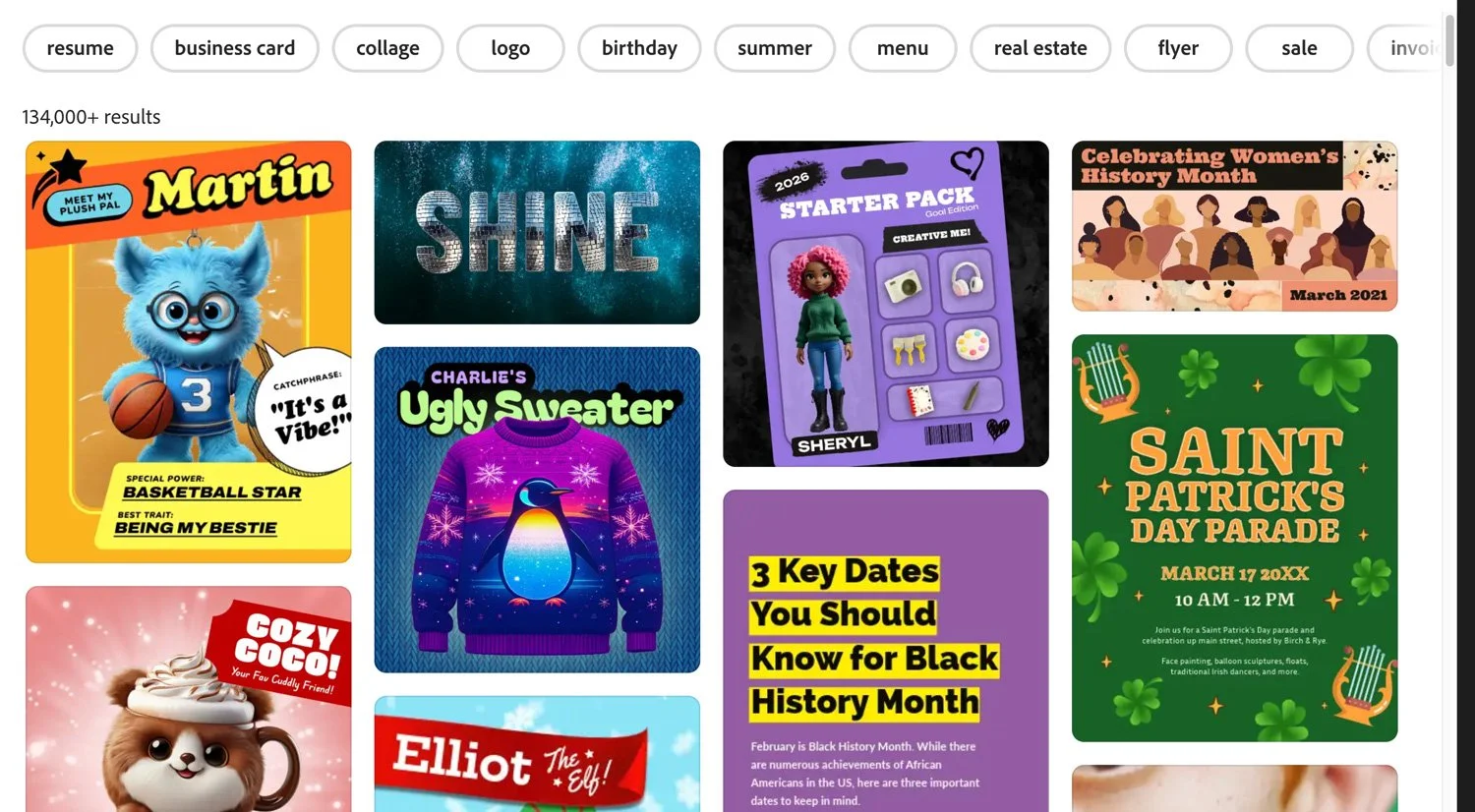
Both Canva and Adobe Express offer many thousands of pre-designed templates you can edit and share. This image is a preview of free templates available in Adobe Express.
#2: Templates
When it comes to features and templates, both offer a wide range of design options to help you create stunning visuals from pre-made templates. There’s no shortage of ideas for creating your own social media posts, presentation slides, business cards, Zoom backgrounds, and the list goes on.
If we’re choosing a winner based on quantity, Canva takes the cake. The platform boasts an extensive library of over 3.6 million premium templates, which is many more templates than Adobe. Express offers around 220,000 to 350,000 templates depending on your plan.
On the other hand, Adobe Express' template library is smaller, but the experience of browsing feels different.
A preview of Canva’s template gallery:
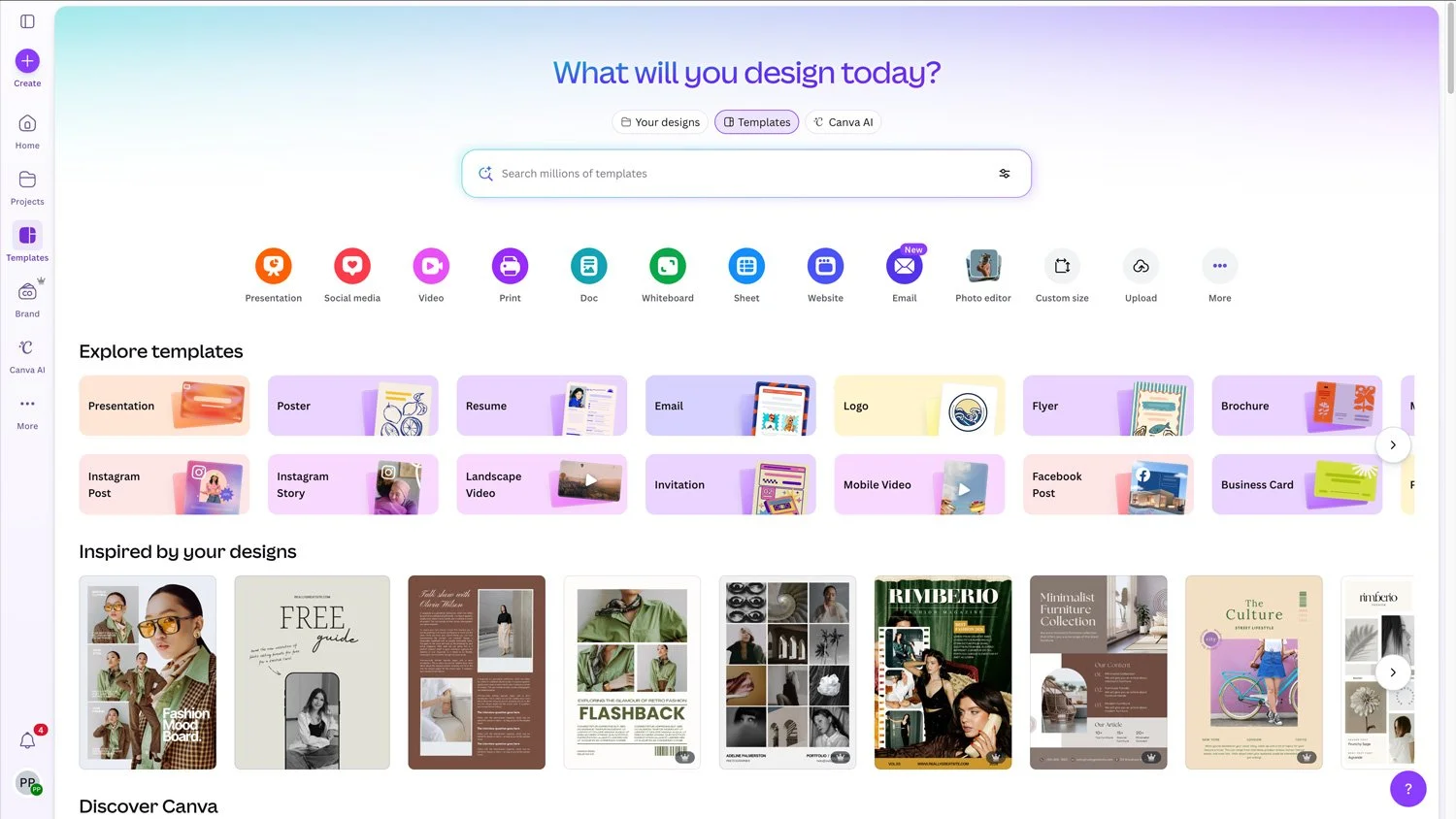
A preview of Adobe Express’ template gallery:
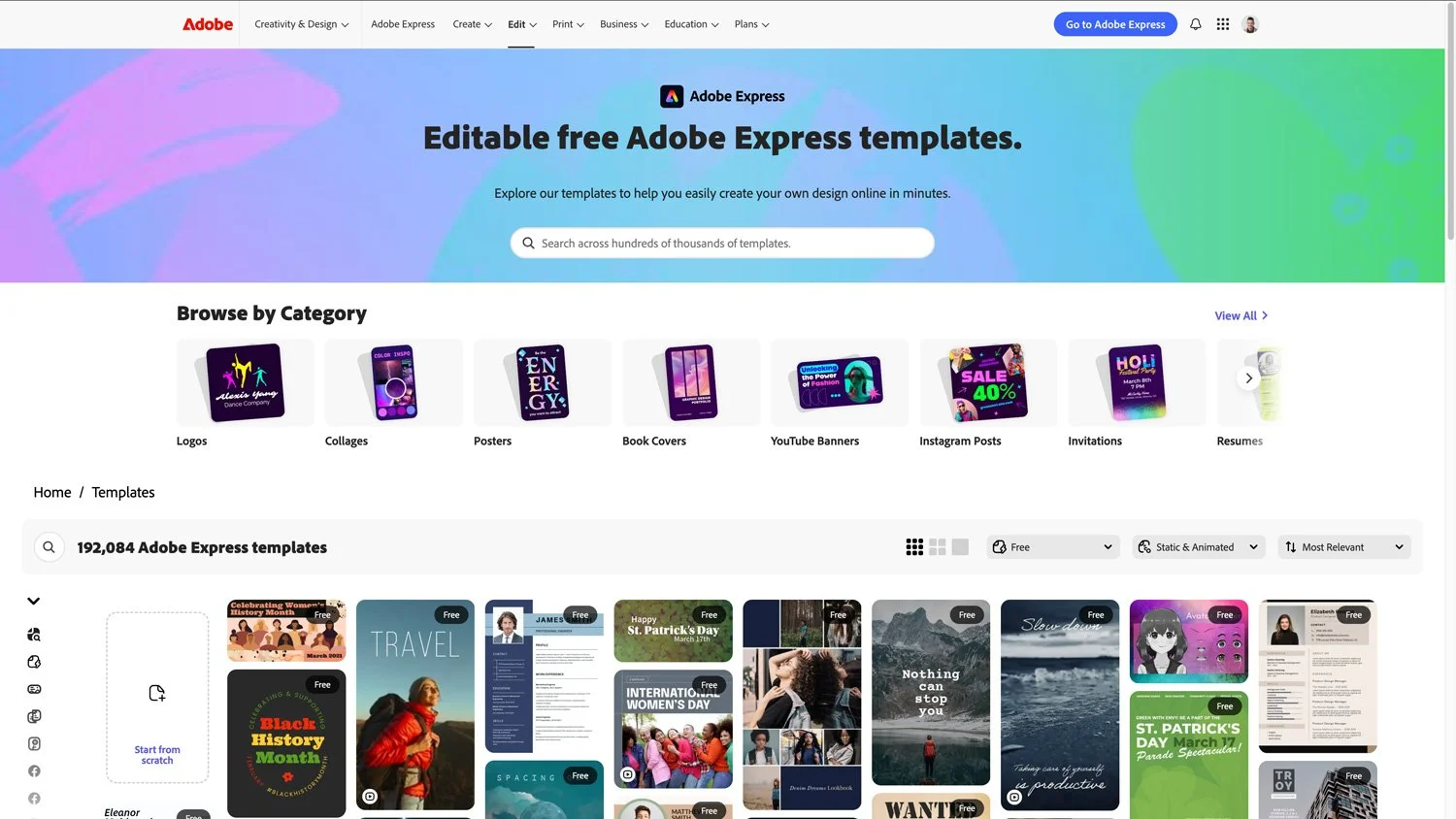
Template quality is subjective, and I'll be honest: both have improved significantly over the years. You can find beautiful, professional designs on both platforms. The real difference is the experience of finding them.
Here's how I think about it: Canva is like walking into a massive warehouse. There are millions of options, and many of them are great, but you have to dig through a lot to find what you're looking for. Express feels more curated. Fewer choices, but they're easier to browse and the overall quality floor is higher. After all, it’s Adobe. For my clients, I find Express helps them get to a strong starting point faster because they're not overwhelmed by endless options.
Quick Actions are a great example of this curation. In Express, they're organized by category: PDF, document, marketing, generative AI. These are tasks likely on your to-do list that you might even use other Adobe pro tools for, but find Express can do them faster. Canva has similar features, but they're not organized in a way that makes them easy to find.
Neither approach is wrong. If you love having unlimited choices and don't mind browsing, Canva delivers. If you prefer a more edited selection where almost everything feels usable, Express may suit you better.
#3: Design Features
I have lots to say on the topic of features and integrations—about both. In this section, I’ll skim over stock video and images because I’m dedicating an entire section to that, so let’s instead start with fonts.
Fonts
Two of the best (and most popular) font libraries on the Internet are Google Fonts and Adobe Fonts (formerly known as Typekit). Both of these libraries offer a wide range of web fonts that can be integrated into websites and tools like Adobe Express and Canva to enhance typography and design. However, if you made me choose between the two libraries, I’d favor Adobe's fonts over Google Fonts based on design, much like any graphic designer or creative.

Both Google and Adobe offer a wide range of web fonts that can be integrated into websites and tools like Adobe Express and Canva to enhance typography and design.
Canva has its own built-in font library (free and premium) that you can access when creating your designs, including many Google Fonts. So if you’re familiar with those, you’ll spot them quickly in the font menu. What about using fonts from Adobe in Canva? There is not an existing integration for obvious reasons, but premium features of Canva enable uploading any font they have saved locally and have licenses or permission to use to their brand kit. It’s trickier if the user doesn’t have the actual font files—but with a Adobe Creative Cloud subscription, you can sync the fonts to your computer and then use them in Canva.

Canva has its own built-in font library (free and premium) that you can access when creating your designs, including many Google Fonts.
In Adobe Express, things are a bit simpler. The platform seamlessly integrates with Adobe Fonts, so the variety you have to choose from will be determined by your membership—free has fewer options, and premium has over 30,000 licensed fonts, curved type, grids, and font pairs. And much like Canva, premium users can upload custom fonts, too—just make sure you have licenses/permission to use them. If you use other popular platforms like DIY website builder Squarespace like I do, they also have integrations, which makes it easy for anyone to stay consistent. My brand font is an Adobe Font, so there’s no need to take any additional steps to be able to use it in Adobe Express.

My brand font is an Adobe Font, so there’s no need to take any additional steps to be able to use it in Adobe Express.
One added design feature specifically for fonts in Express: Recommendations. While Canva does have pre-designed text layouts (available under the “text” menu), they aren’t great. And when I make doubting claims like that, I better prove it, right? Take a look for yourself:

Now, let’s look at the options in Adobe Express, which are better organized by categories—signs and labels, social, logos, and seasonal, for example. And better yet, Adobe Express integrates “recommended” font choices on the text tab, giving you high-quality alternatives to consider for your design.
You can also search for fonts by mood or style, not just by name. Looking for something "playful" or "elegant"? Just search for it. And Express can edit multiple font styles in the same text box, which used to require workarounds.


Import your own content (like PDF)
I’ll cut right to the chase: both platforms give you the ability to import files like a PDF. However, one is far superior in its capabilities. Since Adobe invented the PDF, you can probably guess which one is more triumphant.
I’ll show you.
When I import this example PDF (an interior designer’s mood board) into Canva, the separate images are clumped together as one when selected. As well, some of text isn’t imported properly.

When I import the same example PDF into Adobe Express, each element can be individually selected, and text is imported perfectly. It’s almost as if it were created in Adobe Express, even though it wasn’t.

After several tests, I’ve noticed higher fidelity and editability of imported files, including the ability to move each element individually. And as mentioned earlier, Adobe Express also lets you import PSD and AI files in the same fashion. Canva does not, obviously.
Even better: Adobe Express now supports InDesign file import. You can bring InDesign documents directly into Express, lock elements for brand control, and share with team members who don't have InDesign. This is a game-changer for agencies and creative teams.
Adobe Express also now supports PowerPoint import AND export, bidirectionally. You can bring presentations into Express, enhance them with Express's design tools, and export back to PowerPoint format. (Note: videos, animations, and presenter notes don't transfer, but the core content does.)
Resize
A premium Canva feature is resizing a project in its entirety—so if you want to resize your canvas, you’ll define the new size and hit either “resize” or “copy & resize” and it will apply to every page in your project. Canva now also allows different sized pages within a single project, a feature Express has had for years. (Express often gets criticized for "copying" Canva features, but this is one Canva definitely borrowed from Express.)

If you want to resize your design canvas in Canva, you’ll define the new size and hit either “resize” or “copy & resize.”
In Adobe Express, you can also resize your designs in nearly the exact same way—by defining the pixel dimensions you want, or choosing from a recommended pixel size for popular designs—however, that resize applies to a single page. As a result, it’s possible to have different sized pages in one project, which makes it much easier to organize and streamline different campaign assets in one place. For example, here my brand guidelines PDF in Adobe Express has different page sizes to illustrate how my brand should be used across web and print.

Both platforms now use generative AI to expand backgrounds when you resize. I tested both with me as the human subject (typically where you can spot AI), and the results were relatively similar. Express felt slightly more seamless in the workflow since it's built into the resize process, but Canva's Magic Expand gets the job done too.
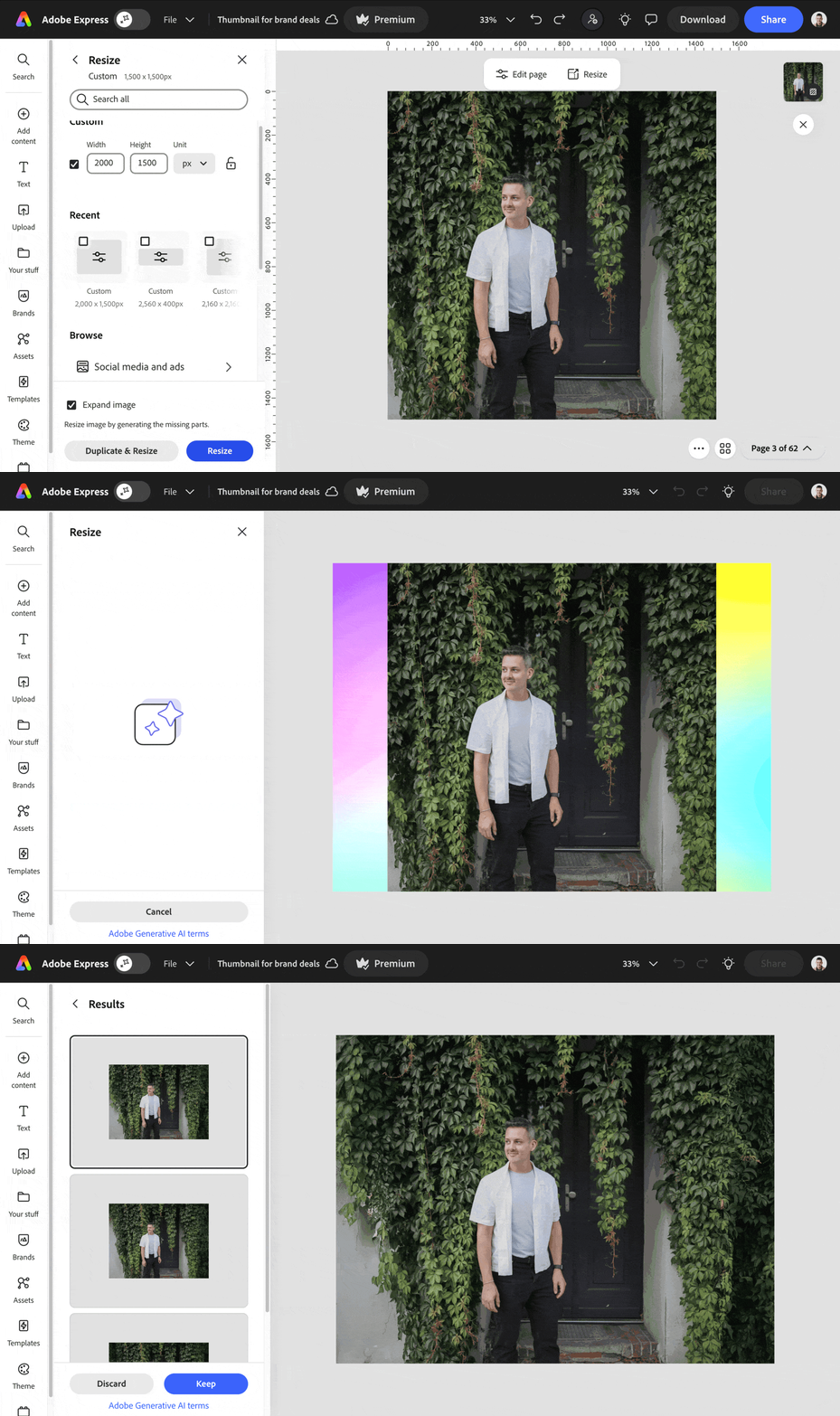
When you resize to a new aspect ratio, Express can use generative AI to expand your backgrounds naturally, no awkward cropping required.
Crop to Shapes
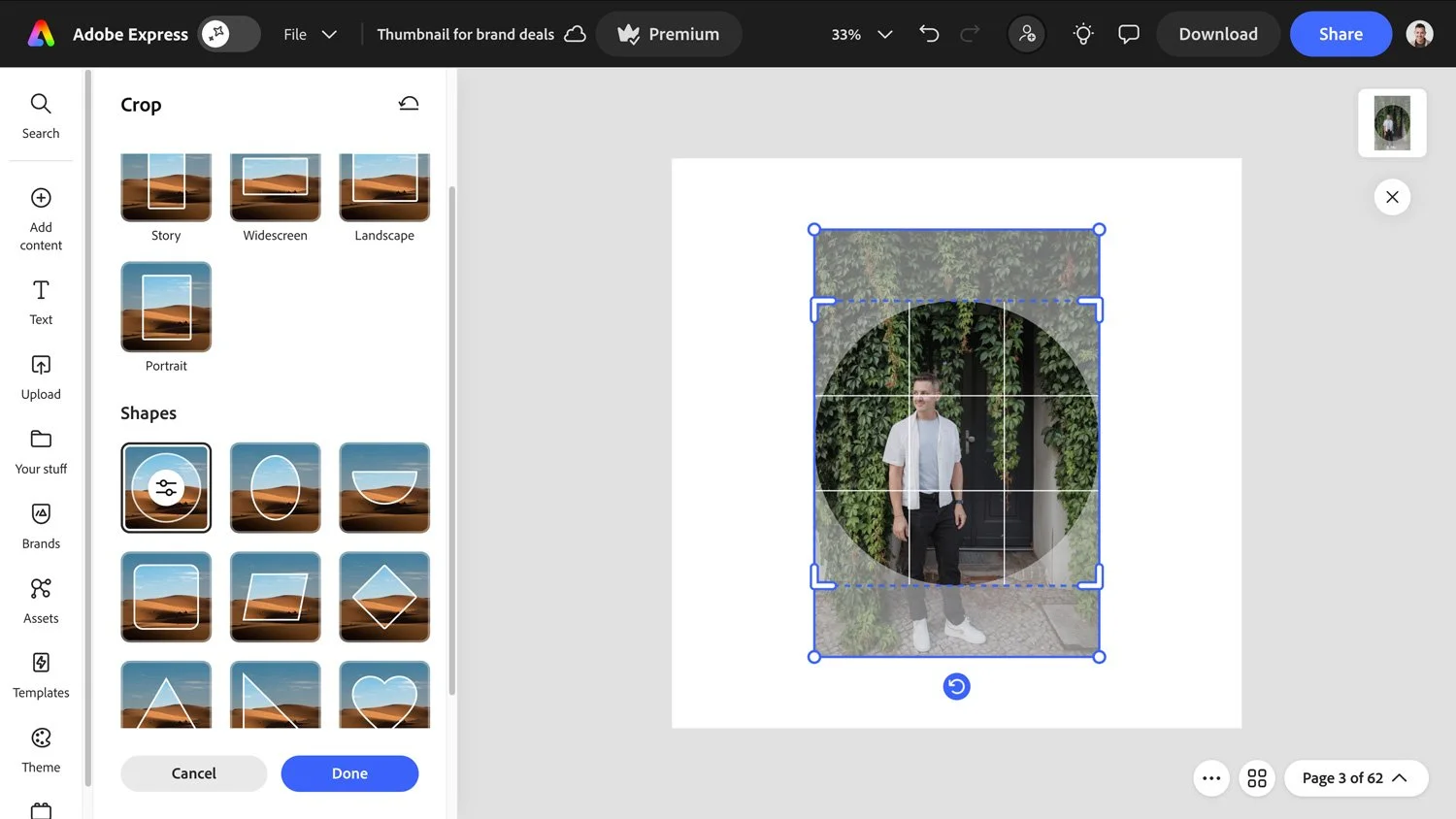
Canva has "frames" that let you place images into pre-defined shapes. Adobe Express takes a different approach with the ability to crop any asset to any shape. The design elements in Express are more sophisticated overall, and I find this approach more flexible for creative work.
#4: Stock Photos & Video
The stock photos and stock video you’ll have access to on each platform are dependent on the properties owned by each media company.
For example, Canva acquired two stock photo websites — Pexels and Pixabay, which helped to substantiate their library of over 141 million premium images, videos, and audio.
On the other hand, much like Adobe's fonts are integrated into Adobe Express, so is Adobe Stock photos. Their royalty-free collection has over 200 million royalty-free photos, videos, and music. So in this case, Adobe Express definitely wins the size comparison.
However, they also win the quality comparison. I’ve found that Adobe’s library is always a hit in the affordable stock photo world. In fact, there have been many times I’ve paid the $9.99 USD licensing fee on Adobe Stock for a photo I’ve found and liked versus using a free alternative. Adobe has made a concerted effort to create a library that’s diverse, interesting, and high quality. I believe they’ve achieved it by hiring smaller photographers instead of being more concerned with quantity or scale. Best of all, you don’t need to pay separately to license photos you find in Adobe Express, which makes its monthly subscription fee, which is the same as licensing a single photo on Adobe Stock, an absolute steal.
Remember, the free version for both have a more limited selection of media and design elements.

Related: Looking for the best stock photography websites? Check out this video.
#5: Ensuring Brand Consistency
Both tools enable you to upload your brand elements to keep your brand consistent.
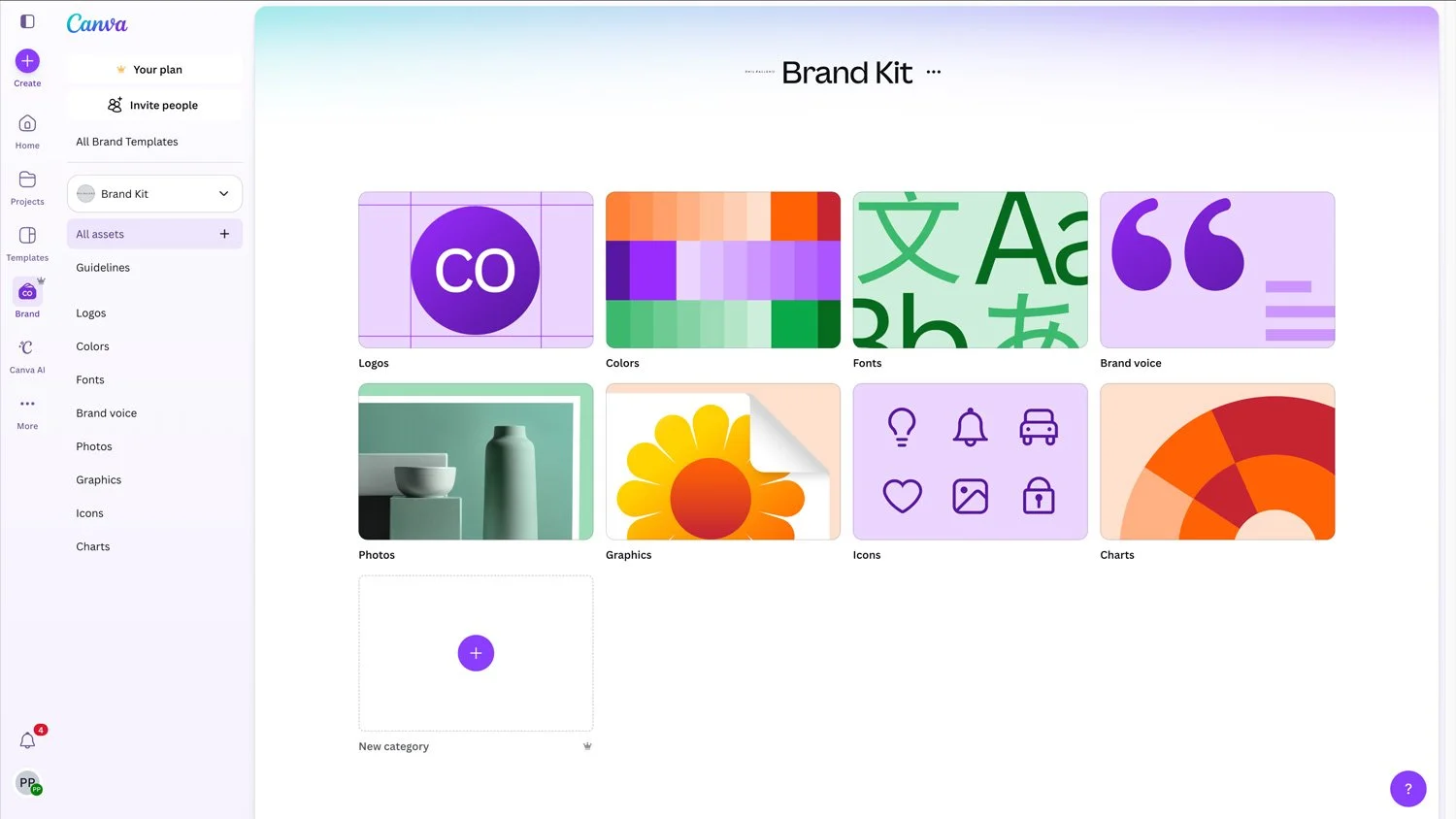
Canva lets you upload your logos, colors, fonts, photos, graphics, icons, and even charts. They've also added Brand Voice (to maintain consistent tone in AI-generated copy) and Guidelines (where you can document how your brand should be used). I actually love the Guidelines feature and wish Express had something similar.
Adobe Express also enables you to upload logos, colors, fonts, photos, graphics, and icons, plus video content and templates. While Canva has expanded what you can store in a brand kit, Express takes a different approach to brand control through its template locking features.

Another advantage: PDF import. Adobe made the PDF format, so they know how to handle it. When I import a PDF created outside Express, it picks up my brand fonts and imports photos with high fidelity. I'd say it works extremely well about 90% of the time. I tested the same PDF in Canva, and it didn't perform quite as well.
Here's where Express differentiates: template locking with granular controls. I actually made a video about this, which was posted on the Adobe Express YouTube channel:
#6: Third-Party Integrations
Both platforms offer add-ons to extend their functionality, but the experience of finding and using them is very different.
Canva's add-on marketplace is massive. They have integrations with major tools like Hubspot, Mailchimp, Google Drive, and Dropbox, plus hundreds of smaller apps. The problem? It's overwhelming.
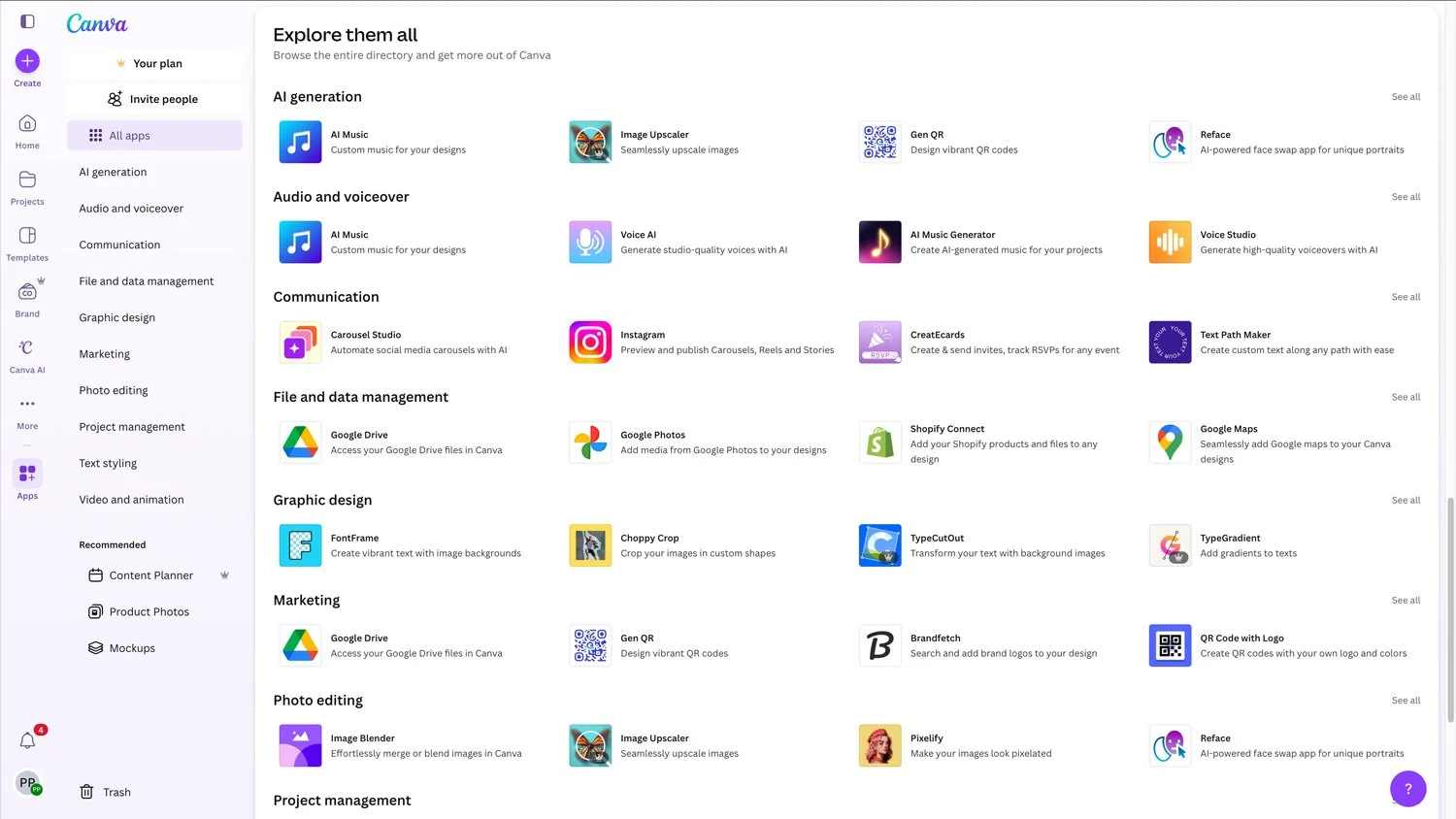
When everything is an option, it's hard to know what's actually worth using. I find myself scrolling through pages of add-ons without a clear sense of what will genuinely improve my workflow.
Adobe Express takes a more curated approach. Fewer add-ons, but they're higher quality and easier to understand at a glance. The ones available have become tools I use every single day for what I'm creating. Both platforms now offer mockups to place your designs onto t-shirts, phones, posters, and other products.
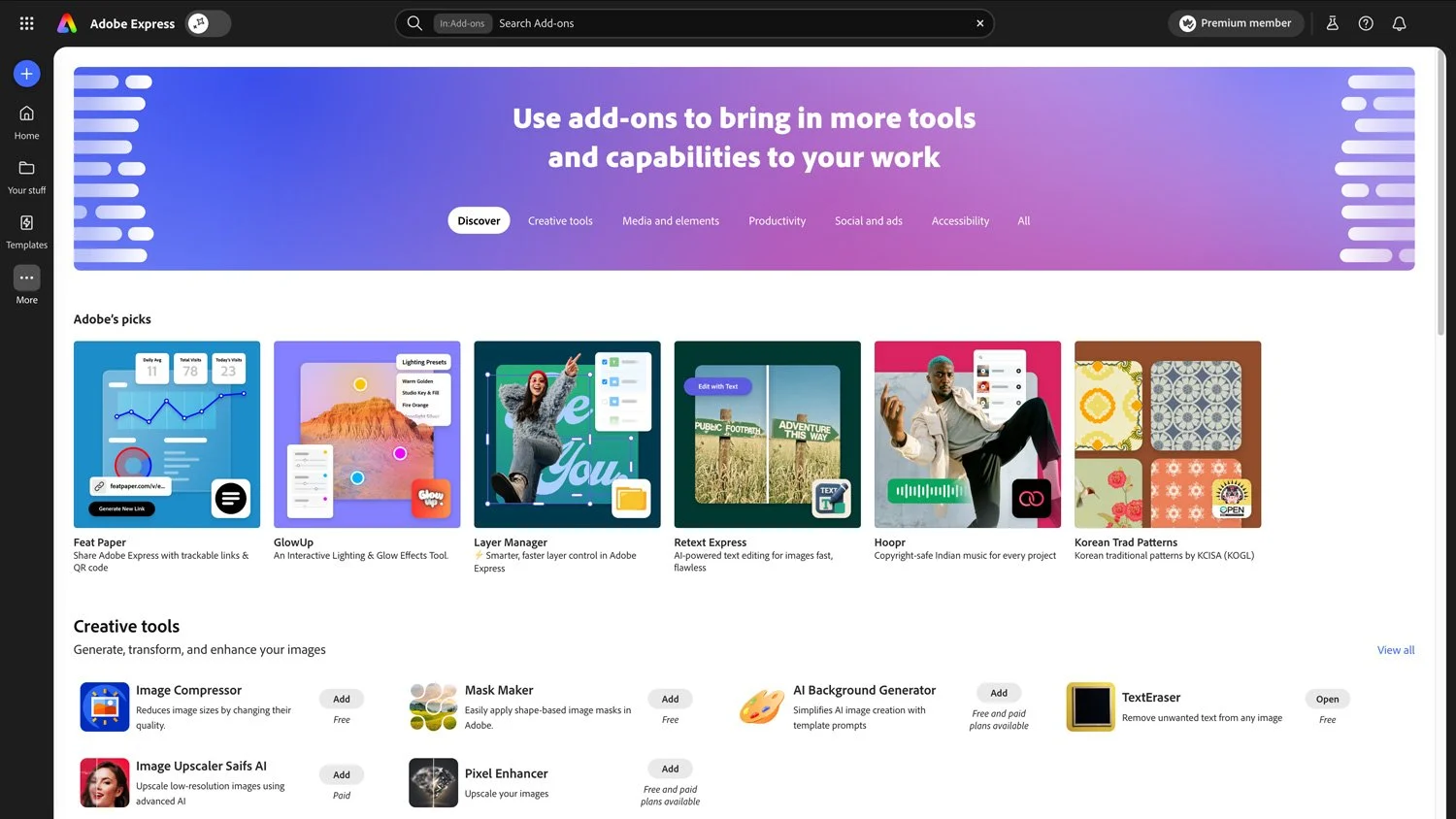
Here are a few Express add-ons I love:
The Color Blindness Simulator
The Color Blindness Simulator add-on allows anyone to check their work by simulating different forms of color blindness, including protanopia, deuteranopia, tritanopia, and monochromacy.

The Color Blindness Simulator add-on allows anyone to check their work by simulating different forms of color blindness, including protanopia, deuteranopia, tritanopia, and monochromacy.
Attention Insight
Attention Insight is an AI tool to help you understand what attracts attention on any design, including a heat map, focus map, and the ability to add separate layers for more accuracy on complex designs.

Attention Insight is an AI tool to help you understand what attracts attention on any design, including a heat map, focus map, and the ability to add separate layers for more accuracy on complex designs.
Auto Icon
Auto Icon is a great alternative to using shapes or icons built into the platform if you’re wanting a more consistent icon set. They have hundreds of “packs” to choose from, which you can customize for your brand.

Auto Icon is a great alternative to using shapes or icons built into the platform if you’re wanting a more consistent icon set. They have hundreds of “packs” to choose from, which you can customize for your brand.
Note that some of these add-ons will remain free, but others may require an upgrade to a premium plan after a trial period (on both Adobe Express or Canva).
#7: Generative AI
Both Canva and Adobe Express have incorporated generative AI into their respective platforms. However, as a key differentiator, Canva has taken a different approach to AI transparency than Adobe.
Canva launched their "Design Model" in October 2025, which they describe as the world's first AI trained specifically for design understanding. Unlike standard image generators that produce flat outputs, this model creates fully editable content with proper layering. It's available within ChatGPT, Claude, and other platforms. However, Canva still hasn't been as transparent as Adobe about the training data used for their AI tools.
Generative AI tools like DALL-E (by Open AI) and Midjourney may have been quicker to market, but they've also been criticized for generating misinformation, as well as referencing creative works that it doesn't have explicit permission to use. That violates copyrights for artists and creatives.
On the other hand, Adobe Firefly (encompasses the brand’s generative AI technology) was built in-house by Adobe, only referencing libraries like Adobe Stock with clear consent, as well as adhering to strict protocols of the Content Authenticity Initiative (which Adobe created themselves). By developing this technology themselves, they’ve sidestepped both the ethical and legal gray areas of training AI.
The Content Authenticity Initiative has become a leading governing body to prevent misinformation and increase transparency around the use of AI, and they have 2,500+ member organizations (including ones I’ve collaborated with like Synthesia). When I’ve questioned brands I’ve worked with, they’re quick to mention that they’re members of the Content Authenticity Initiative because of what it represents in this rapidly emerging technology.
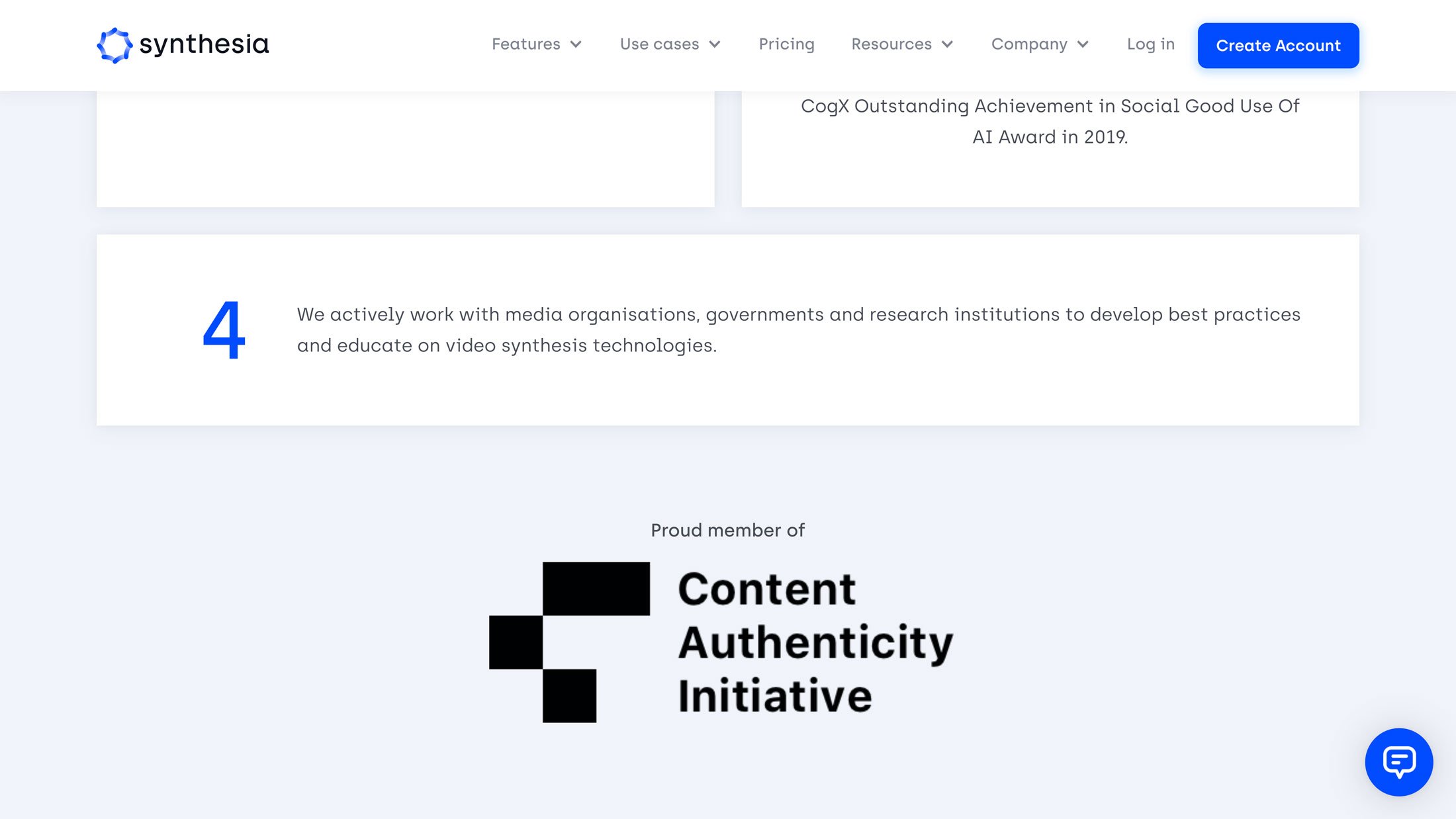
Others brands that I work with like Synthesia proudly state on their code of ethics (pictured above) that they are members are of the Content Authenticity Initiative, created by Adobe, the leading governing body to prevent misinformation and increase transparency around the use of AI. (Source: Synthesia)
When it comes to trying generative AI features on Canva, you may explore Magic Studio, which includes over 20 AI-powered tools like Magic Eraser, Magic Grab, Magic Expand, and Beat Sync for video.
On Adobe Express, its generative AI features like Generate Image and Generate Text Effects are fully integrated into the platform and easily accessible from the homepage when logged in.
Generate Image
Make extraordinary images from just a description using Text to image feature in Adobe Express. Choose from additional settings like content type (photo, graphic, art) and many style options.
Generate Text Effects
Apply unique style and texture to create extraordinary text effects from only a description using Adobe Express. Customize your text with font and weight styles, or get inspired by sample effects visible in the same panel. By the way, this generative AI feature is completely unique to Adobe.

Source: Adobe
Insert Object or Remove Object
These tools let you add, remove, or replace objects within an image using simple text descriptions. Select an area, describe what you want, and Express generates options that blend with the existing image. It's useful for removing distractions, adding elements to a scene, or swapping out backgrounds without manual editing.


Generate Presentation
Adobe Express can now generate entire presentations from documents, links, or simple prompts. Upload a PDF, paste a URL, or describe what you need, and Express creates a structured outline with slides.
What I appreciate about this feature is that it doesn't skip the thinking step. You review and refine the outline before any slides are designed, so you're not stuck fixing AI-generated content after the fact. You can adjust the length, audience, and level of detail, then choose a template and let Express build the slides.
From there, you can regenerate individual slides, swap visuals, apply your Brand Kit, and add animations. There's also a Presenter Mode for live delivery.
For anyone who struggles to get ideas out of documents and into slides, this removes a lot of the friction.
Related: Want to see Generate Presentation in action? In this video, I walk through the full workflow, from uploading messy documents to delivering a polished, on-brand presentation.
AI Assistant (Beta)
Launched at Adobe MAX in October 2025, the AI Assistant lets you create and edit designs using natural language. Describe what you want, and the AI helps make it happen. You can switch between AI prompts and manual editing tools, so you're never locked into one way of working. This is currently in beta for Premium desktop users.
Related: Curious how the AI Assistant actually works? In this video, I demo the full workflow, from prompts to polish, and share best practices for getting better results.
Other Great Features in Adobe Firefly
Adobe Firefly now includes video generation and editing tools that go beyond the typical AI video demos. Instead of fantasy landscapes and sci-fi effects, these tools are genuinely useful for brand content: product variations, color swaps, and platform-ready edits.
Prompt to Edit lets you modify AI-generated videos with text prompts. Add accessories, change colors, or remove unwanted elements. This is practical for A/B testing, seasonal campaigns, or creating variations for different audiences.
You can also upload your own footage via Firefly Boards and edit with prompts, though there's currently a 32MB file limit, so it's best suited for social and web content.
The new Firefly Video Editor (beta) lets you assemble and edit clips without exporting to another tool. You can create platform variations (YouTube vs. Reels/Shorts) in minutes, all within Firefly.
Related: Want to see a practical brand workflow using Firefly video tools? In this video, I walk through Prompt to Edit, uploading your own footage, and creating platform variations for real campaigns.
#8: Planning & Scheduling Content
Planning content is possible in both tools, but with a few main differences.
In Canva, you can schedule your content only with a Pro plan ($15/month). There are many channels you can schedule content to, including Instagram, Facebook, Twitter, Pinterest, LinkedIn, Slack, and Tumblr.
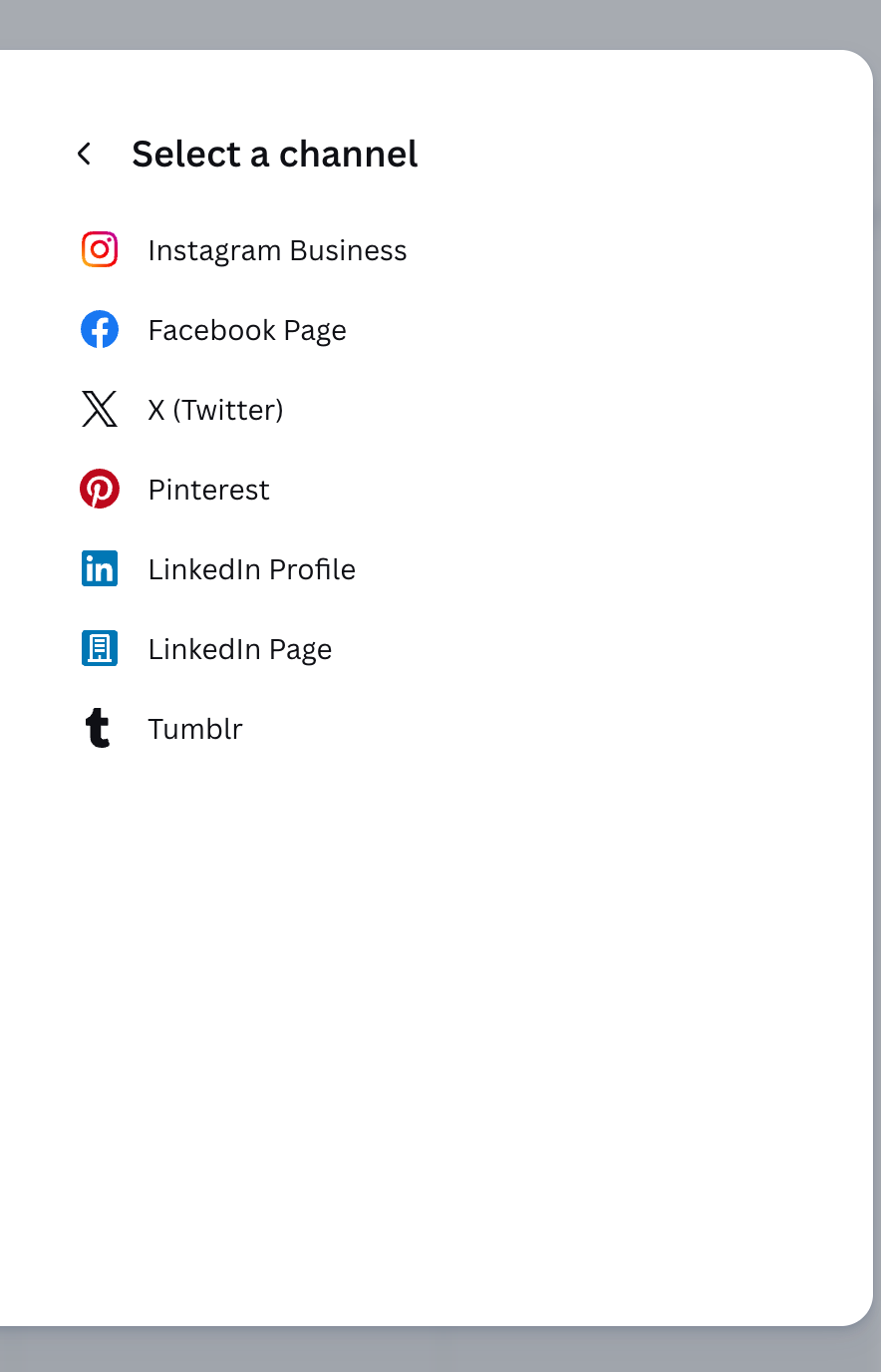
In Adobe Express, you can schedule content on TikTok (exclusive partnership with them), as well as Instagram, Facebook, X (Twitter), Pinterest, and LinkedIn.
And best of all, Content Scheduler in Adobe Express is available on FREE plans of Express. This is a major differentiator. You're limited to one account per social network and 1,000 posts monthly on the free plan, but for many solopreneurs and small businesses, that's more than enough.
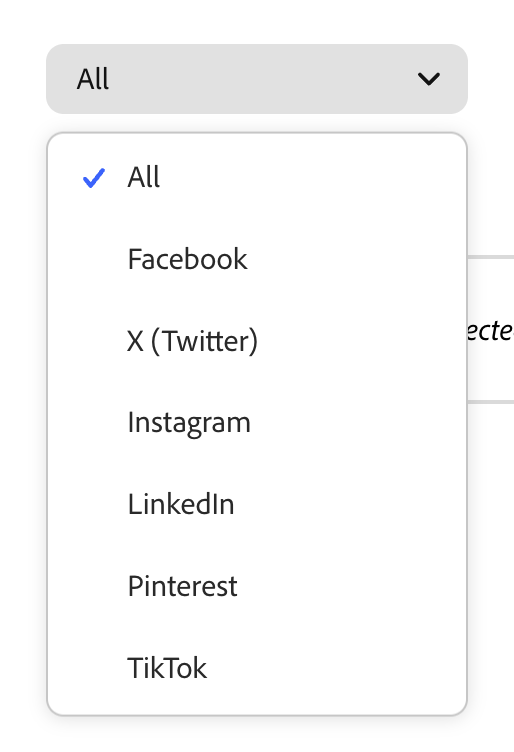
Both Canva and Adobe Express can also display your content at a glance in monthly view, as well as leave a post as is in ‘draft’ status—no requirement to set a date and time, which could be used as an additional layer for approvals before content is scheduled.
On either platform, I'm not sure this feature alone would drive users to it, but it is an added benefit to be able to schedule your content in the same place you create it. That said, getting scheduling for FREE on Express while Canva charges $15/month for it is a significant value difference.
#9: Mobile App
Both platforms now have fully functional mobile apps for iOS and Android.
Canva's mobile app has been around longer and built a strong reputation early on. Adobe Express's mobile app has improved significantly and now includes robust features: trim clips, resize for social media, add captions, adjust speed, apply filters, and more. Projects sync automatically across devices, so you can start on mobile and finish on desktop.
Which app is "better" depends on what you're used to and what you're creating. I genuinely enjoy using the Express app, and I know many others who feel the same way. If you've only tried Canva's app, it's worth giving Express a look.
#10: Pricing
There are different subscription options with varying features in Canva vs Adobe Express. Both platforms offer a free plan, which has limited features in comparison to its premium offerings. As well, both offer a premium subscription, but the pricing is different.
Canva pricing
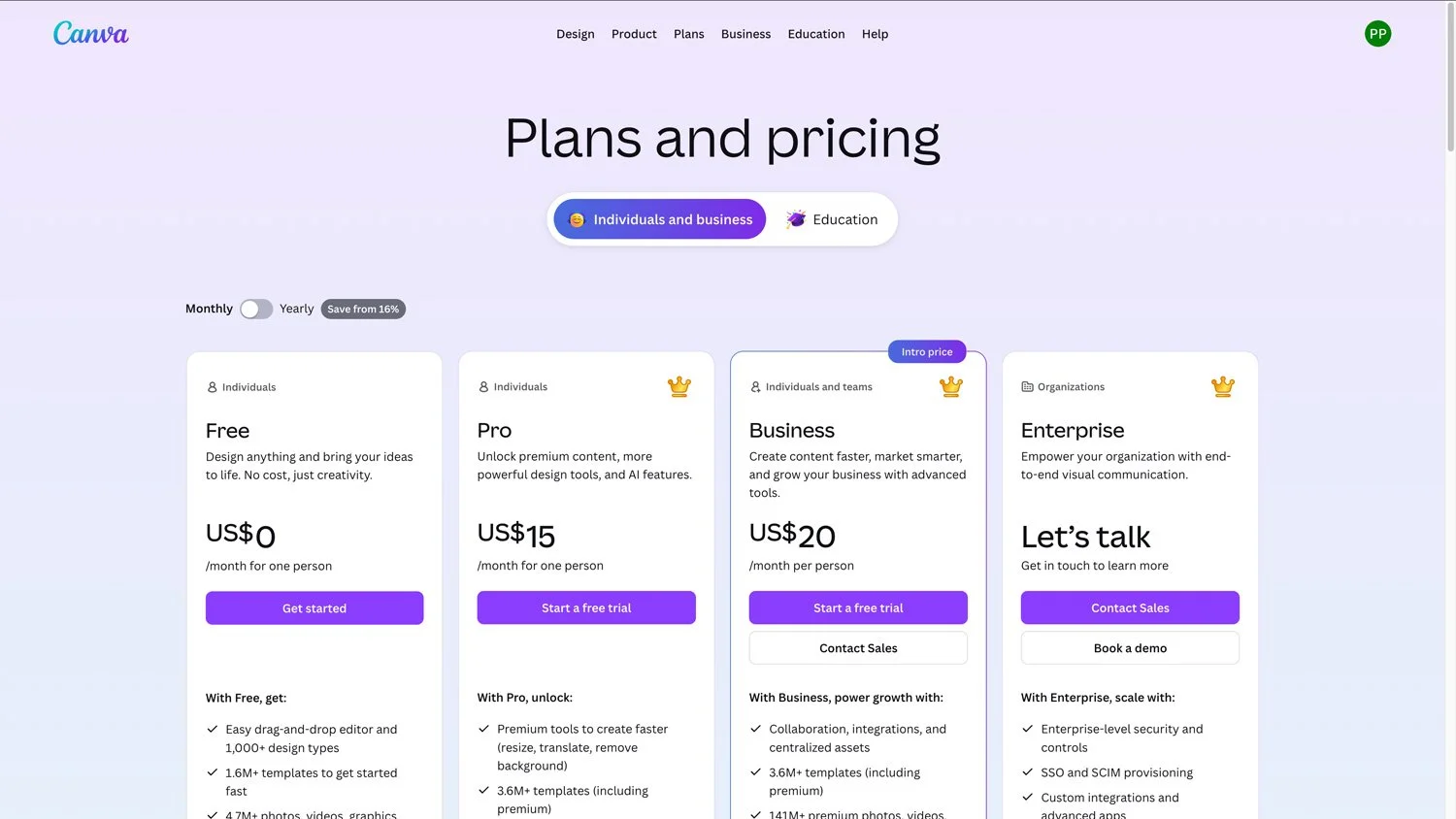
Canva offers four tiers: Free, Pro ($15/month), Business ($20/month per person, currently marked as an intro price), and Enterprise (contact sales).
Canva Free includes 1.6M+ templates and the core editor. Pro unlocks premium templates, background removal, and additional AI features. Business adds collaboration tools, integrations, and centralized assets.
Adobe Express pricing

Adobe Express offers three tiers: Free, Premium ($9.99/month), and Firefly Pro ($19.99/month).
Express Free includes 100,000+ templates, 1M+ Adobe Stock assets, and 4,000+ fonts. Premium unlocks all templates, 200M+ assets, 250 monthly generative AI credits, and time-saving features. Firefly Pro adds 4,000 monthly credits for AI video and audio, plus unlimited Generative Fill in Photoshop on web and mobile.
Express Premium requires no annual commitment and is billed monthly. That $9.99 vs $15 difference means about 33% savings compared to Canva Pro.
#11: Video Creation & Editing
This is a new section because video capabilities have evolved dramatically on both platforms.
Clip Maker
One of my favorite Adobe Express features is Clip Maker. If you create long-form content like podcasts, webinars, or tutorials, this is a game-changer.
Upload a longer video, and Clip Maker analyzes the transcript to automatically identify highlights. Within seconds, you have multiple clips ready for social, and they're not cut off mid-sentence. The AI understands context.
You can toggle on auto-captions, adjust duration, and export in any aspect ratio: Reel, square, landscape, portrait. What used to take an hour now takes minutes.
Canva offers a feature called Highlights that also creates short clips from longer videos. Highlights uses AI to identify "best moments" based on visual and audio cues, then generates clips automatically.
Both tools aim to surface the strongest moments from longer footage. Express gives you scores to help prioritize and makes adding captions straightforward.
Enhance Speech
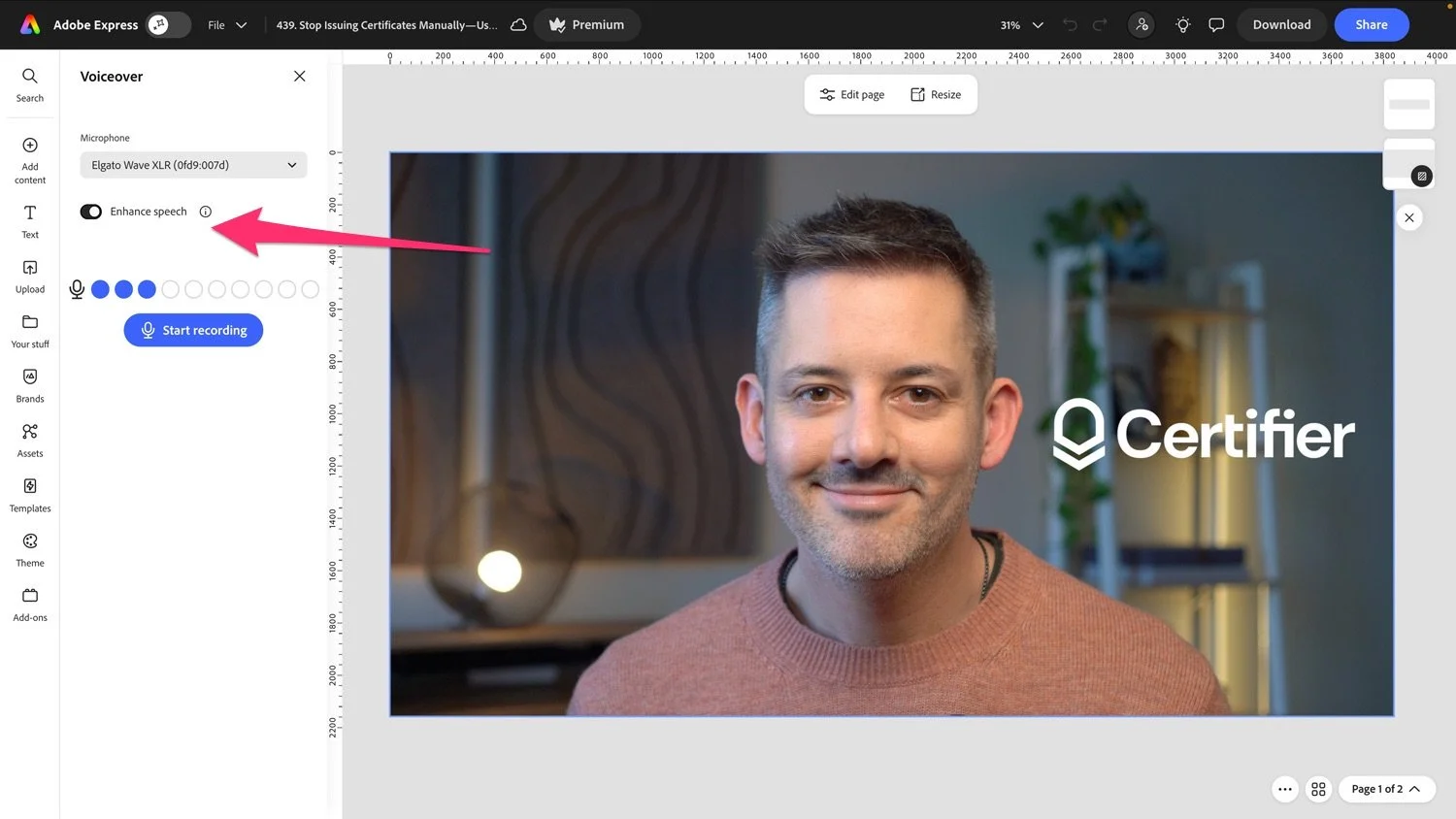
Both platforms now offer one-click audio cleanup. Adobe Express calls it Enhance Speech; Canva calls it Enhance Voice. Both remove background noise and bring your voice to the forefront.
The difference: Express gives you an intensity slider so you can control how much cleanup is applied. Canva's Enhance Voice is a simple toggle with no adjustable controls.
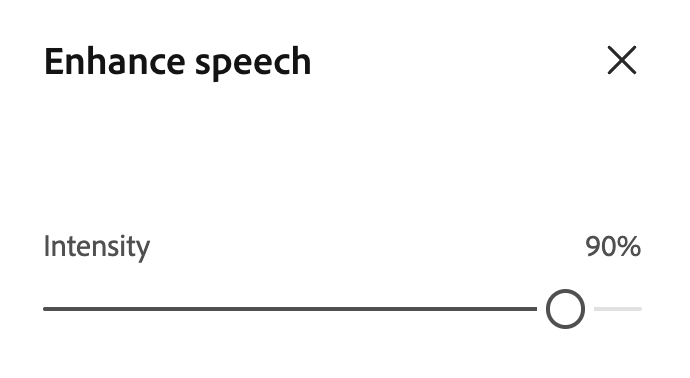
Canva's Enhance Voice is available on all plans including free, though usage counts against monthly AI limits. Adobe Express's Enhance Speech works similarly within the Premium tier.
For most use cases, both get the job done. But if you want finer control over the result, Express gives you that option.
Self Record
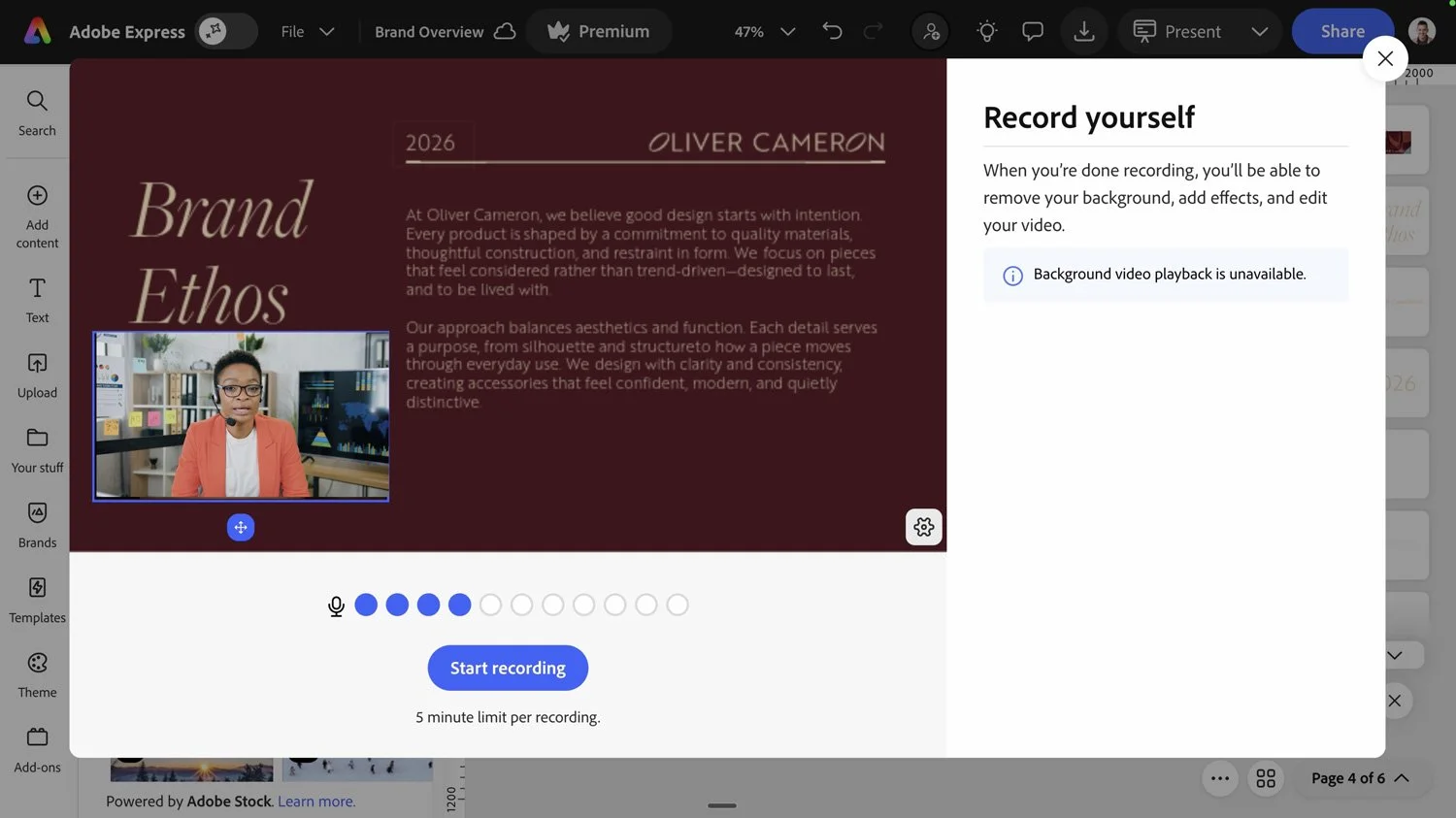
Adobe Express now includes Self Record, allowing you to record video directly in the platform. It supports up to 5-minute recordings with background removal, and recordings are stored for reuse across projects. Great for adding personal touches to tutorials or social content.
Canva has webcam recording through "Record Yourself," which works similarly.
Social Safe Zones
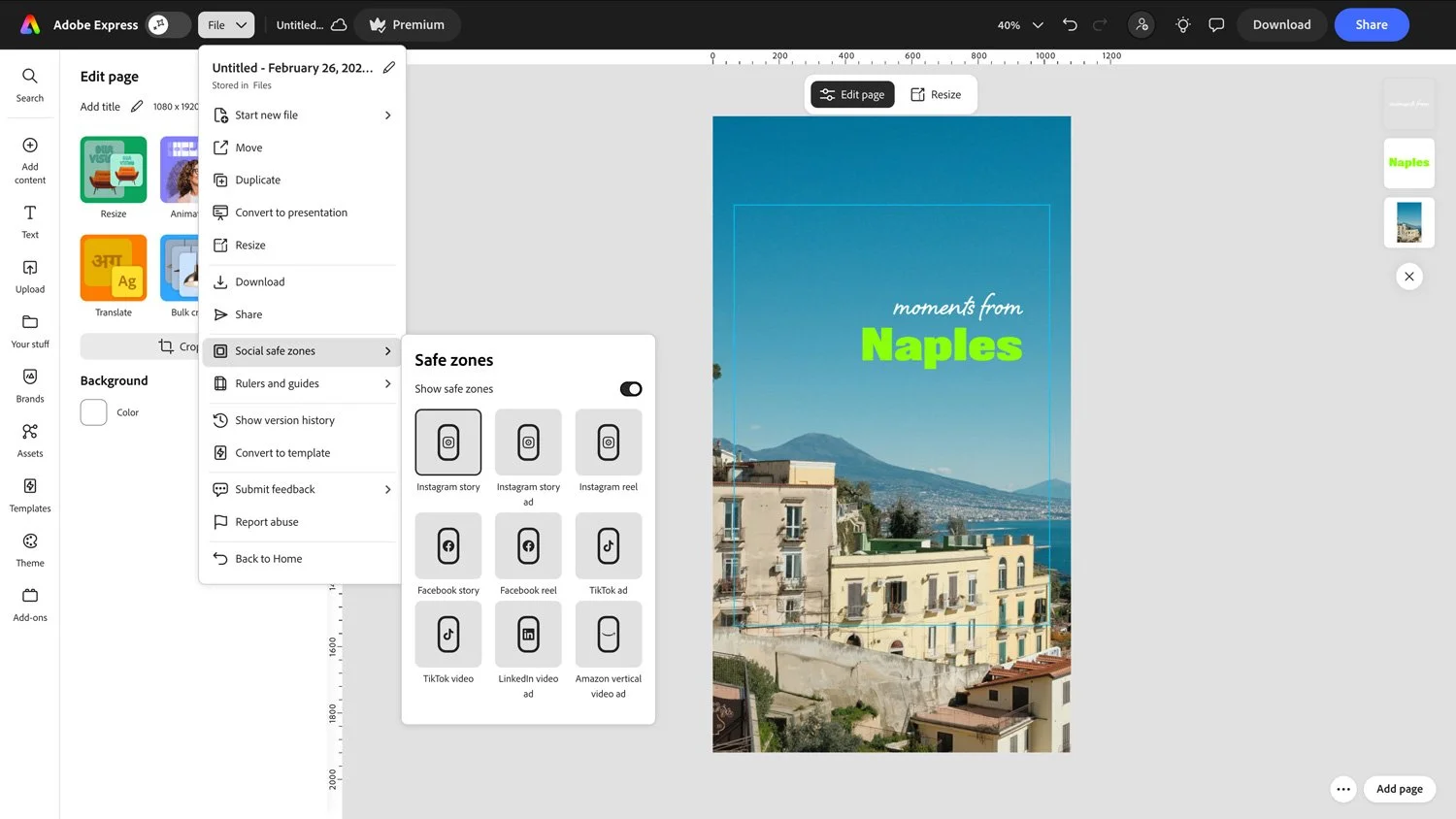
This is a feature Adobe Express has that, to my knowledge, Canva doesn't have built in.
When you're designing for TikTok, Instagram Reels, or YouTube Shorts, Express can show you exactly where platform UI elements (like buttons, captions, and profile icons) will appear. You see the safe area before you export, so your text and key visuals never get covered.
I don't believe Canva has this natively. You'd likely need to use one of their third-party apps or download external PNG overlays and manually layer them on top of your designs. It works, but it's not integrated.
For anyone creating vertical video content regularly, this is a genuine time-saver in Express.
#12: Professional Workflow Integration
This is another new section because it's become one of Adobe Express's most significant advantages.
Creative Cloud Integration
Adobe Express works seamlessly with other Creative Cloud apps. This is something Canva simply cannot replicate.
Photoshop and Illustrator files sync automatically as linked assets. Update the file in Photoshop, and it updates in Express.
Import InDesign documents directly and convert them to editable Express templates.
Import and export PowerPoint presentations bidirectionally.
Brand kits sync with Creative Cloud Libraries for cross-app access.
For businesses, this creates a workflow where creative teams can build in professional tools and hand off to marketing teams in Express, with template locking ensuring nothing goes off-brand.
Canva has no native integration with professional design tools. While third-party solutions exist, the workflow remains fragmented. If your team uses Photoshop, Illustrator, or InDesign, Express is the clear choice.
What About Canva's 2025 Moves?
I want to be fair to Canva here, because they made some significant moves in 2025:
Affinity Acquisition: Canva made the professional design suite Affinity completely free. This includes Pixel Studio (photo editing), Vector Studio (vector design), and Layout Studio (page layouts). These are desktop applications that previously cost hundreds of dollars. One million users signed up within four days.
This is a big deal for professional designers looking for free alternatives to Adobe's desktop apps. However, Affinity doesn't integrate directly with Canva's web platform the way Express integrates with Creative Cloud. You can create in Affinity and export to Canva, but the workflow isn't seamless.
Creative Operating System: Canva launched Visual Suite 2.0, allowing you to create documents, presentations, websites, whiteboards, and videos within a single unified design. They also introduced Canva Sheets (spreadsheets with AI features), Canva Forms, and email design tools.
These are impressive expansions, but they're moving Canva toward being an "everything" platform rather than focusing on design excellence. For some users, that's exactly what they want. For others, it adds complexity without improving the core design experience.
Final Verdict
Both platforms have their pros and cons, which I’ve detailed in this blog post. If I had to sum them up:
Canva is the better for:
Template quantity (3.6+ million vs 350,000)
Integration with Google Fonts
Integration with Pixabay and Pexels
Many integrations with other third-party apps
Mockups feature
Mobile app experience (slight edge)
Affinity (free professional design suite)
Canva Sheets, Forms, and expanded productivity tools
Collaboration features (folder sharing, team workspaces)
What lacks in Canva:
Quality of pre-designed text lockups
Resizing individual project pages
Transparency around generative AI tools
Integration with professional design workflows
Granular template locking and brand control
Free content scheduling (requires Pro subscription)
Adobe Express is the better option for:
Curated, elevated design experience
Rulers and guides (now available)
Libraries and linked assets synced across the Adobe ecosystem
Quick Actions for common tasks
Integrations with fonts and stock (photos and videos) from Adobe
Importing PDFs with high fidelity and editability
Stock media quantity and quality
High quality add-ons
Powerful generative AI tools designed in-house with clear ethical standards
Template locking with granular brand control
Video features (Clip Maker, Enhance Speech, Self Record)
Social Safe Zones
InDesign import and PowerPoint import/export
Free content scheduling
Lower price point ($9.99 vs $15/month)
What lacks in Adobe Express:
Template quantity (though quality is higher)
Collaboration features (Canva has more robust folder sharing)
Storage (100GB vs 1TB)
For the cross-compatibility with other Adobe products, the design sophistication, the generative AI tools, and the price, I recommend Adobe Express over Canva.
Canva is still a solid choice for solopreneurs and small businesses who want an all-in-one platform and don't need professional design tool integration. It's accessible, it's familiar, and the Affinity acquisition gives users free access to professional desktop tools.
But for people who appreciate elevated design, a curated experience, and seamless integration with professional creative workflows, Adobe Express is the clear winner. It costs less, offers more at the free tier (including scheduling), and positions design as a craft rather than a commodity.
Given the demands on entrepreneurs and small business owners nowadays, I also believe there's a world where people might want to use both, depending on the needs of a project.
The choice is yours. Which one will you choose? Let me know in the comments below.
Pin it for later